How to Install and Configure Cloud Master DMX Software
When it comes to stage lighting and special effects, event professionals know that precision control is everything. Whether you’re running a small DJ setup, a theatrical production, or a large-scale concert, the ability to program and synchronize lights, effects, and atmospherics can transform an ordinary performance into an unforgettable spectacle. That’s where Cloud Master DMX software comes in.
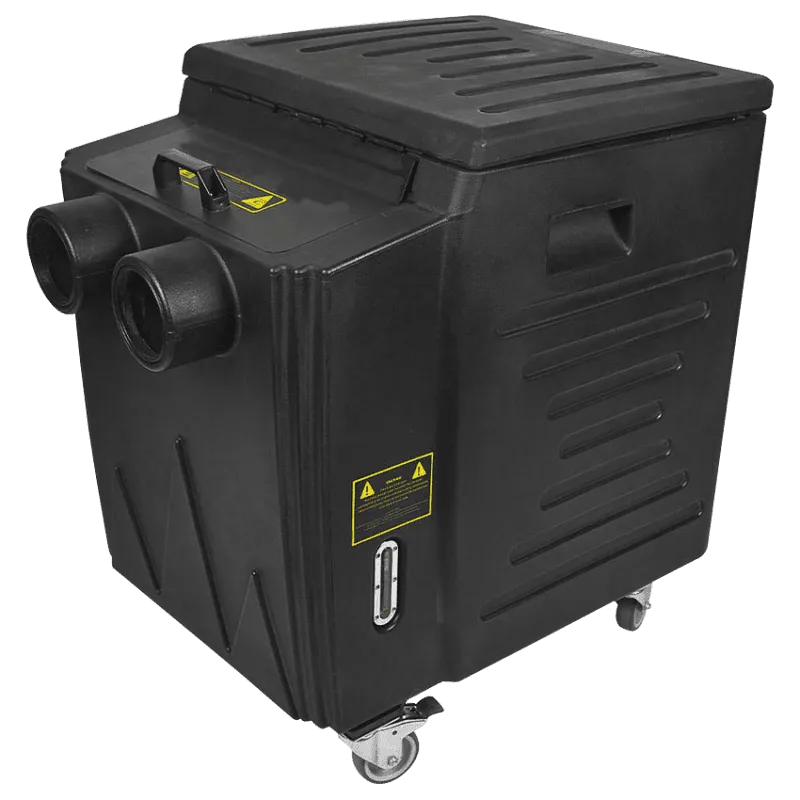
Cloud Master DMX is a powerful, intuitive software designed to make DMX512 lighting control simple yet highly customizable. With it, you can program complex lighting scenes, automate cues, and even sync your lights to audio for a truly dynamic performance. For event planners and DJs, pairing this software with equipment like LED par lights, moving heads, and even a cloud smoke machine creates a visually stunning experience without needing an entire lighting crew.
In this guide, we’ll cover everything you need to know about installing and configuring Cloud Master DMX software—from system requirements and step-by-step installation to fixture configuration, troubleshooting, and real-world event applications. Whether you’re a beginner setting up your first DMX system or a pro looking to refine your workflow, this comprehensive guide has you covered.
Understanding Cloud Master DMX Software
What Is Cloud Master DMX?
Cloud Master DMX is a digital lighting control software that allows users to manage stage lighting, effects, and special effects machines using the industry-standard DMX512 protocol. Instead of relying solely on physical DMX controllers, this software provides an intuitive interface for building scenes, chases, and synchronized light shows.
Key Functions
-
Control multiple DMX universes.
-
Manage fixtures such as LED pars, moving heads, strobes, and blinders.
-
Sync lighting with music or MIDI controllers.
-
Automate cues for theater, weddings, and live concerts.
-
Integrate with atmospheric devices like fog machines and cloud smoke machines.
Why Professionals Use It
-
Flexibility: Custom programming options for any type of show.
-
Portability: Runs on laptops for easy transport and setup.
-
Scalability: Works for small events and large productions alike.
📌 Example: A wedding planner might use Cloud Master DMX to create a slow, romantic fade sequence during the first dance, followed by energetic chases synced with the DJ’s playlist for the party portion of the evening.
System Requirements & Pre-Installation Checklist
Before installation, it’s critical to ensure your system meets the software’s requirements. Failure to do so often results in crashes, unrecognized DMX interfaces, or lag during live events.
Minimum System Requirements
-
Operating System: Windows 10/11, macOS Ventura or later, Linux (select builds).
-
Processor: Intel i5 or AMD equivalent.
-
RAM: 8 GB minimum (16 GB recommended).
-
Storage: 2 GB free space.
-
Graphics: Dedicated GPU recommended for rendering heavy visuals.
Hardware Requirements
-
USB-to-DMX interface or Ethernet-to-DMX adapter.
-
Sufficient USB ports for MIDI controllers or audio sync devices.
-
Reliable power supply to avoid disruptions during events.
Pre-Installation Checklist
✅ Update operating system.
✅ Download latest drivers for your DMX interface.
✅ Disable unnecessary startup programs.
✅ Ensure stable internet connection for license activation.
⚠️ Pro Tip: Always install the software and drivers at least 24 hours before an event to allow time for troubleshooting.
How to Install Cloud Master DMX Software
Installing Cloud Master DMX is straightforward, but details vary slightly depending on your operating system.
Step-by-Step Installation (Windows 11 Example)
-
Download Installer from the official website.
-
Run Setup File → Right-click → “Run as Administrator.”
-
Accept License Agreement.
-
Choose Installation Path (default:
C:\Program Files\CloudMasterDMX). -
Select Components (Core Software, Fixture Library, Drivers).
-
Click Install and wait for completion.
-
Plug in USB-to-DMX interface when prompted.
-
Restart the computer.
macOS Ventura Installation
-
Download
.dmginstaller. -
Drag Cloud Master DMX to Applications folder.
-
Allow software under System Preferences → Security & Privacy.
-
Install DMX drivers if required.
-
Launch software and connect USB-to-DMX interface.
Linux Installation (Advanced Users)
-
Use package manager:
-
Install dependencies (
libusb,alsa). -
Add user to
dialoutgroup for DMX USB access. -
Run:
📌 Example Scenario: A DJ installing on a MacBook for portability during gigs may choose custom installation to save space by excluding rarely used fixture libraries.
Initial Configuration After Installation
Once installed, you need to set up your environment for first use.
Launching Software
-
Open Cloud Master DMX from desktop or applications folder.
-
Accept license agreement and configure workspace layout.
Connecting Hardware
-
Plug in USB-to-DMX interface.
-
Open Preferences → Devices.
-
Select “Add DMX Interface” and choose the correct driver.
-
Test with a single fixture (e.g., LED par).
Testing Communication
-
Assign fixture to DMX Channel 1.
-
Move dimmer slider in software.
-
Confirm light responds.
📌 Example: If you connect an RGB LED par, sliding the Red, Green, and Blue channels individually should produce corresponding color changes.
Configuring DMX Channels & Fixtures
DMX Addressing Basics
-
Each fixture has a starting DMX address (e.g., Channel 1).
-
Multi-channel fixtures (e.g., moving heads) require multiple consecutive addresses.
-
Avoid overlap to prevent command conflicts.
Using Fixture Library
-
Navigate to Fixtures → Add Fixture.
-
Select brand/model (e.g., Chauvet, ADJ, Rasha).
-
Assign universe and DMX channel range.
Manual Configuration (if fixture is missing)
-
Enter channel functions manually:
-
Channel 1 → Dimmer
-
Channel 2 → Red
-
Channel 3 → Green
-
Channel 4 → Blue
-
-
Save as custom fixture profile.
📌 Example: A 16-channel moving head may include pan, tilt, dimmer, color wheel, gobo, shutter, and reset commands.
Advanced Settings & Features
Creating Scenes & Chases
-
Scene: A static look (e.g., stage wash in blue).
-
Chase: Sequence of scenes (e.g., color cycle across fixtures).
-
Add transitions and timing for smooth playback.
Music Synchronization
-
Enable Audio Input → Beat Detection.
-
Assign lights to flash or change on beats.
-
Example: LED pars strobes on snare hits during a DJ set.
MIDI Integration
-
Connect MIDI controller via USB.
-
Map faders and buttons to software functions.
-
Example: Assign MIDI knob to dimmer control of moving heads.
Wireless DMX Setup
-
Pair software with wireless DMX transmitter.
-
Configure channel hopping to avoid interference.
-
Test before live use.
Troubleshooting Common Issues
Software Not Detecting DMX Interface
-
Ensure drivers are installed.
-
Try different USB ports.
-
Check Device Manager (Windows) or System Report (Mac).
Fixture Not Responding
-
Confirm DMX address matches software.
-
Check cables and terminators.
-
Test with another fixture.
Lag or Delay in Response
-
Lower DMX refresh rate.
-
Reduce number of simultaneous effects.
-
Upgrade CPU/RAM if bottlenecked.
📌 Pro Tip: Always use DMX terminators at the end of daisy-chained fixtures to prevent signal reflection issues.
Best Practices for Event Setup
-
Test entire setup before the audience arrives.
-
Save multiple configurations for different venues.
-
Always carry backup USB-DMX interfaces.
-
Integrate fog machines, cloud smoke machines, and spark machines for layered effects.
-
Follow safety guidelines (especially with CO2, pyrotechnics).
Real-World Use Cases
Concert Lighting Setup
-
Multiple universes for moving heads, strobes, and blinders.
-
Sync with backing track for perfect timing.
Wedding Lighting
-
Elegant fades during dinner.
-
Dynamic dance floor lighting synced with DJ playlist.
Theater Lighting
-
Pre-programmed cues triggered automatically.
-
Integration with sound effects.
Corporate Events
-
Controlled lighting for product launches.
-
Spotlights synced to keynote presentations.
FAQs
Q1: How do I connect Cloud Master DMX to a moving head?
Assign correct DMX address, load fixture profile, test with pan/tilt channels.
Q2: Can I use Cloud Master DMX with a cloud smoke machine?
Yes. Assign machine to dedicated DMX channel for on/off or intensity control.
Q3: Does it work wirelessly?
Yes, with a wireless DMX transmitter/receiver system.
Q4: How do I fix unresponsive lights?
Check addressing, cable integrity, and terminators.
Q5: What’s the difference between DMX software and a physical DMX controller?
Software provides automation, visual programming, and integration options unavailable in manual hardware-only setups.
Conclusion
Installing and configuring Cloud Master DMX software is one of the most effective ways to gain professional-level control over your stage or event lighting setup. From small DJ gigs to massive concerts, the software offers scalability, reliability, and flexibility. By following the step-by-step guide above, you’ll be able to set up your system confidently, troubleshoot common issues, and create impressive lighting designs that leave a lasting impression.
When combined with modern lighting equipment—moving heads, LED pars, and even atmospheric effects like fog or cloud smoke machines—Cloud Master DMX turns ordinary events into immersive experiences.